
How To Log In and get to the Dashboard.
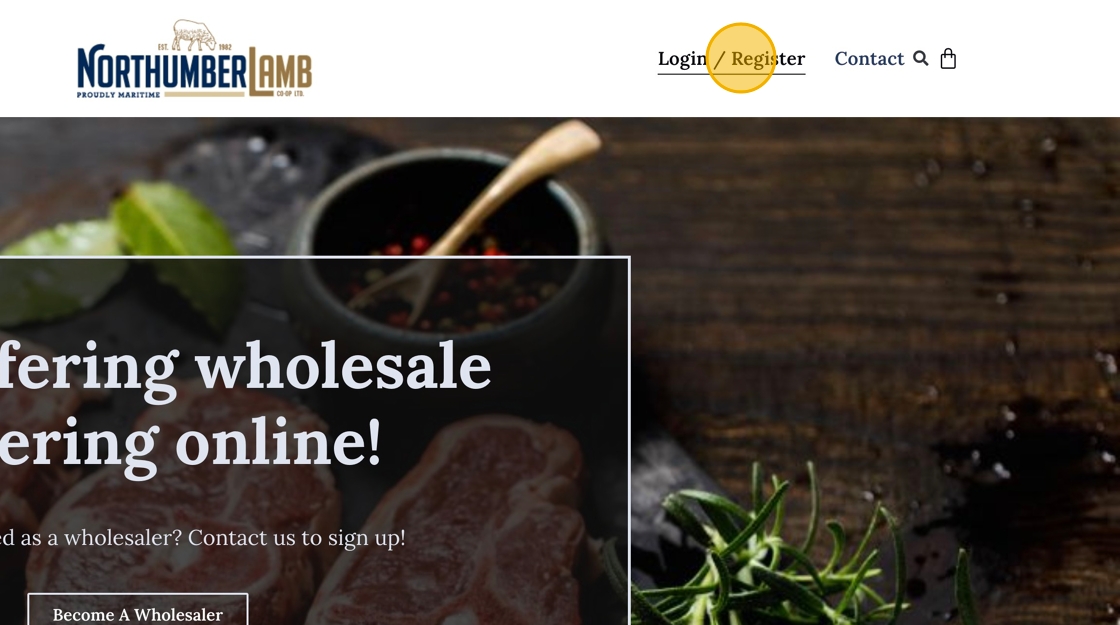
1. Click “Login / Register”
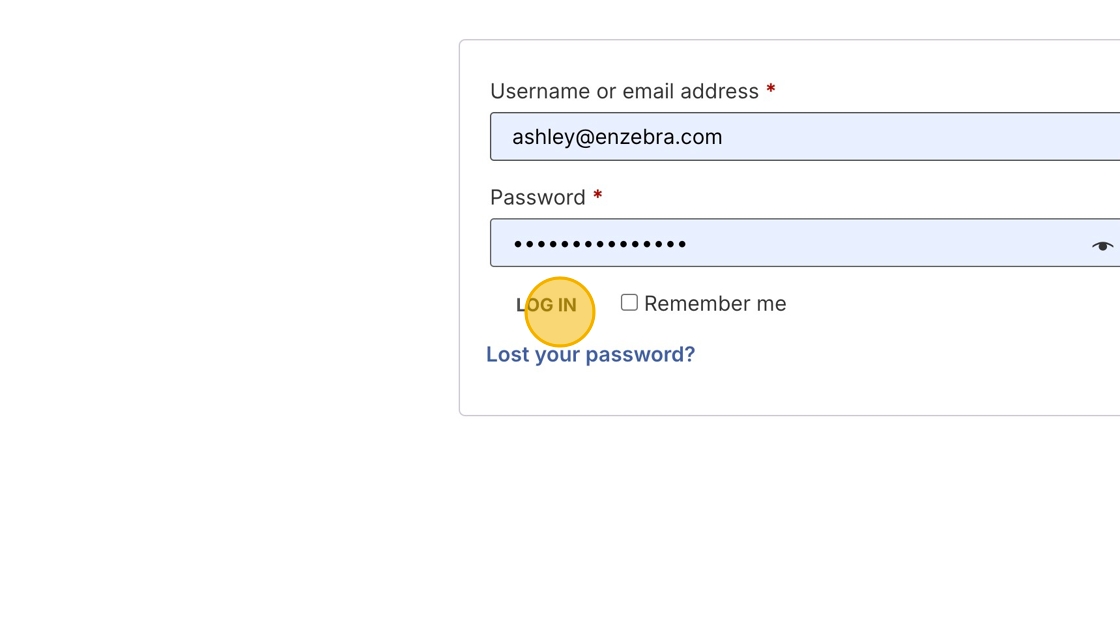
2. Enter your email and password.

3. Click “Log in”
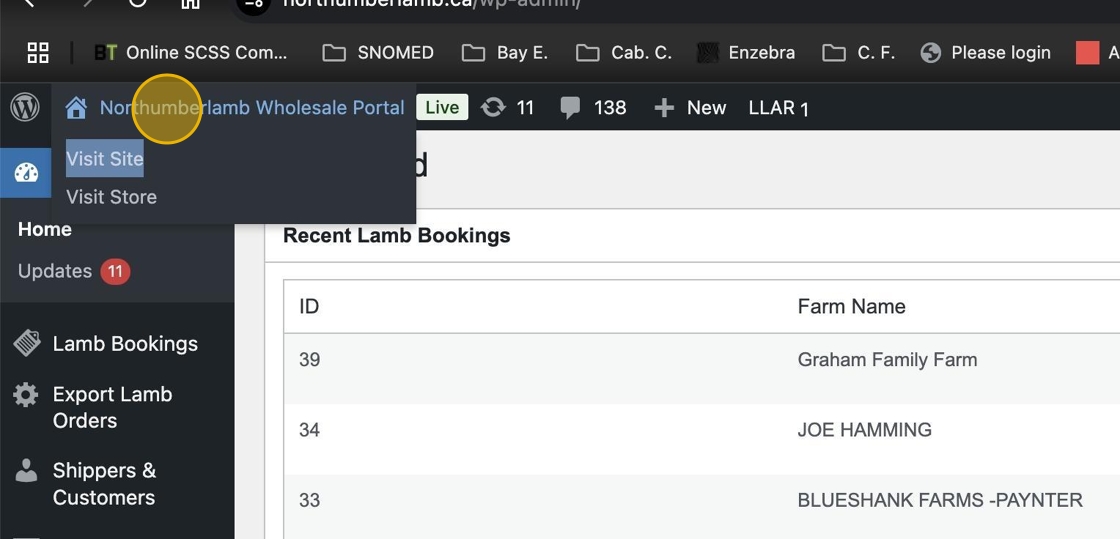
4. Click the Site title to go the the Dashboard.
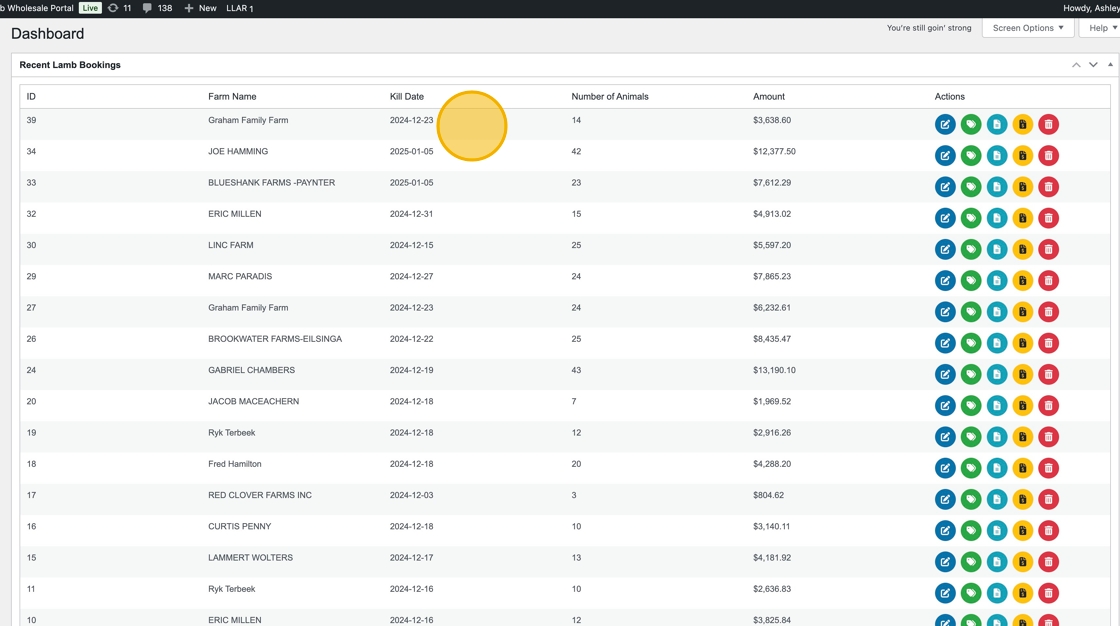
5. Have fun with all the lamb bookings!
Setting Base Prices for Lamb, Light Lamb, and Mutton
1. Login to the website and click the site title where it says “Northumberlamb Wholesale Portal” to get to the back end. top left of screen.
2. Click “Set Base Price”

Tip: Before setting the base price make sure your past bookings are marked as “Approved”.
3. Enter the prices you wish to be set for the base.

4. Click Save Changes.

Print Carcass Labels
1. From the “Dashboard” click the “Print Labels” button for your shipment. Your pdf carcass labels will download.
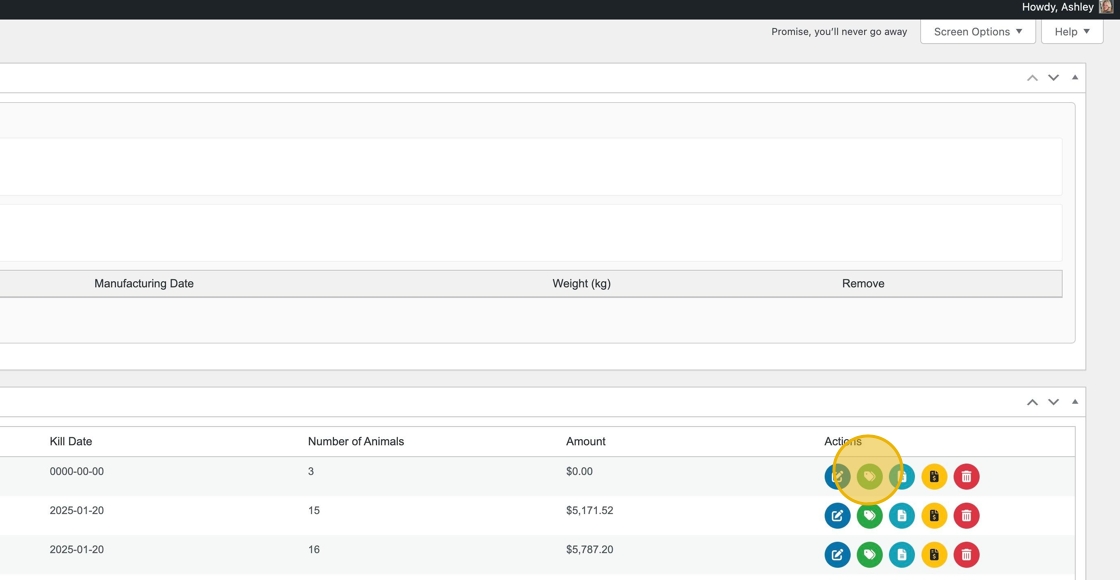
2. Open the pdf and print on the label printer at the office. Throw these in the carcass for grading.

Export CFIA forms
1. From the Dashboard select the teal “Export CFIA Forms” button. Tour file will download.

2. Open the file and print to have available when the shipper arrives.

How to Grade a Lamb (via Tablet App)
1. Locate the Code: On the lamb carcass label, find the “Key in Code.”

2. Enter and Submit: Type the code into the app and tap Submit.

3. Complete the Fields: Enter the details for Weight, GR, Leg, Loin, and Shoulder. To correct any errors, tap Clear. When all information is entered, tap Submit Grading.
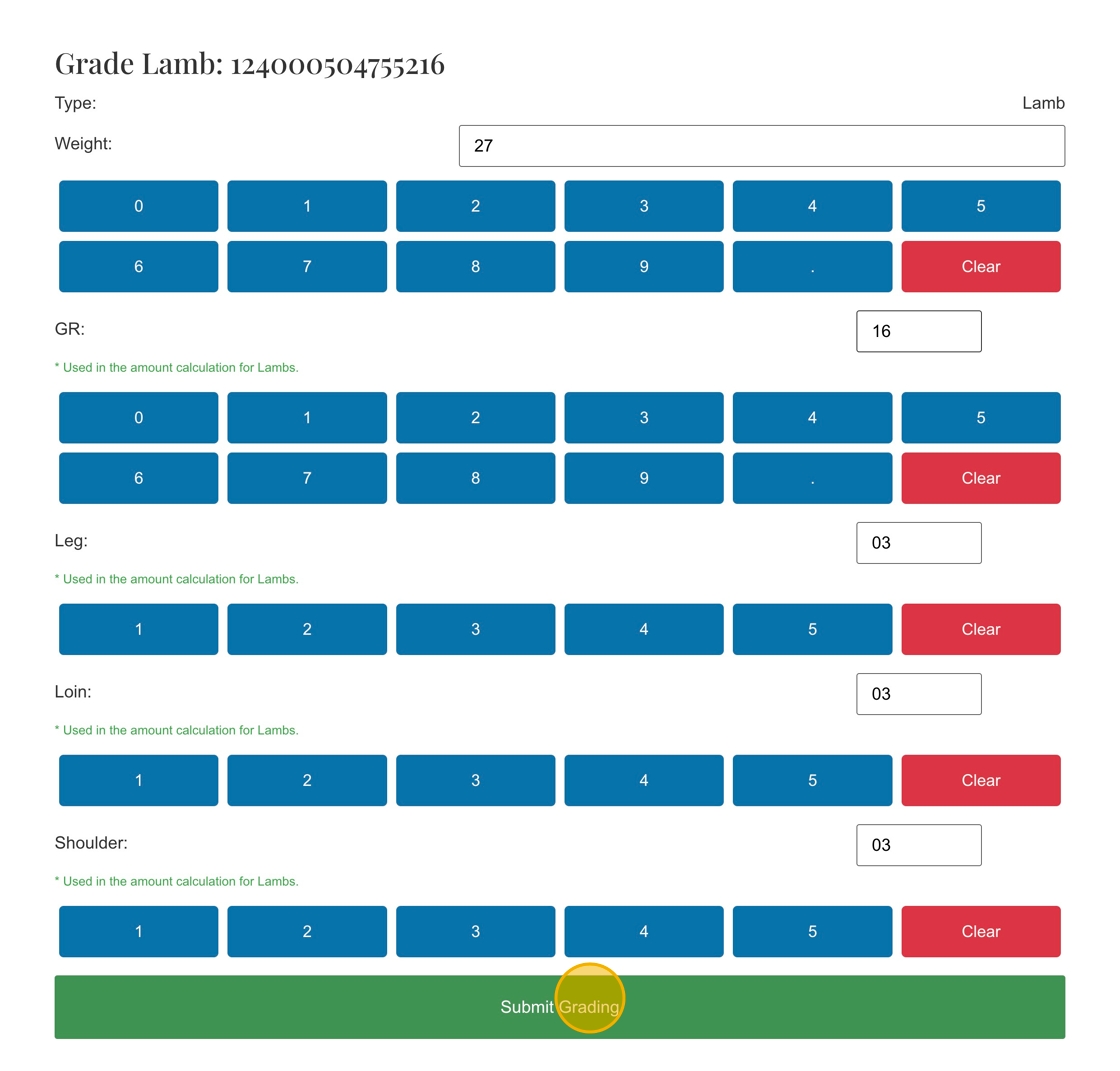
Tip: If you made a mistake re-enter the key in code in the next view and submit it again.